Manage an Anyscale Cloud on Google Cloud
Manage an Anyscale Cloud on Google Cloud
The creator or assigned owner of an Anyscale Cloud can manage deployed cloud resources. The three main ways to modify an Anyscale Cloud are deleting, editing, and setting default resources.
Delete an Anyscale Cloud
To delete an Anyscale Cloud, follow these steps to ensure a safe and complete removal of all associated resources. This process involves terminating instances and clusters, running the deletion command, and understanding the post-deletion implications.
Step 1: Terminate all active instances and clusters
For all clusters with running, pending, and error statuses, follow the instructions in the UI to stop the workload. Verify in your Google Cloud console that these clusters have no running instances.
Step 2: Delete the Cloud
Delete the Anyscale Cloud with the following command:
anyscale cloud delete --name <cloud-name>
Post-deletion implications
- After deleting an Anyscale cloud, you can no longer create clusters, workspaces, jobs, or services using this cloud.
- Any clusters associated with the deleted cloud are no longer accessible.
When you delete an Anyscale cloud that you set up using anyscale cloud setup, all associated resources are also removed.
However, deleting a cloud created using anyscale cloud register doesn't automatically remove any Google Cloud resources you created. To revoke Anyscale's access to these Google Cloud resources, you should delete the Service Account or the workload identity provider associated with Anyscale's AWS account.
Update custom resources
For Anyscale clouds deployed with anyscale cloud register, you can modify the Filestore and storage bucket configuration. Prior to updating, Anyscale performs a static verification of cloud resources. If errors occur during this validation, review and resolve any issues.
To update cloud resources, download your current cloud configuration, modify the resources file, then use anyscale cloud update to apply the changes. See Update multiple resources for a cloud.
Filestore
To update the Filestore instance, download your current cloud configuration and modify the resources file. See Update multiple resources for a cloud.
The following example shows the structure of a cloud resource with updated file storage configuration:
- name: vm-gcp-us-west1
  provider: GCP
  compute_stack: VM
  region: us-west1
  file_storage:  # Update this section
    file_storage_id: <new_filestore_instance_id>
    mount_path: <filestore_location>
Storage bucket
To update the storage bucket, download your current cloud configuration and modify the resources file. See Update multiple resources for a cloud.
The following example shows the structure of a cloud resource with updated object storage configuration:
- name: vm-gcp-us-west1
  provider: GCP
  compute_stack: VM
  region: us-west1
  object_storage:  # Update this section
    bucket_name: gs://<new_bucket_name>
Additional options
- Use
--cloud-idas an alternative to cloud name. - Add the
--functional-verifyflag to automatically launch a workspace or service from your cloud and verify that your updated cloud is functional.
To ensure that the updated Anyscale cloud meets the requirements, add the optional flag --functional-verify to launch a test workspace and service.
Updating and replacing resources doesn't automatically delete unused entities. You must separately delete any unwanted resources.
Control costs
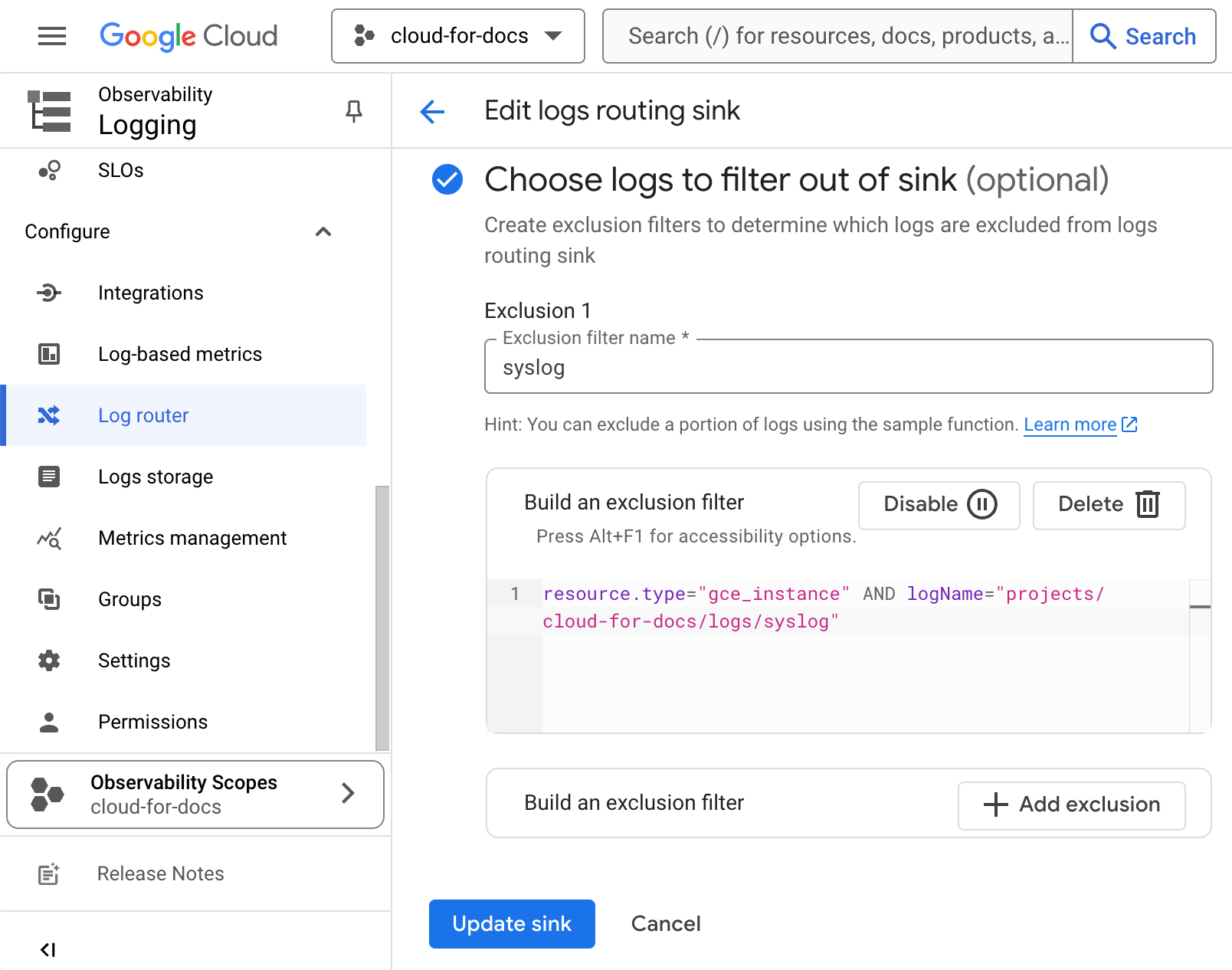
By default, Google Cloud logs various activities, including those from Compute Engine instances (GCE), which may generate unexpected costs if not monitored. To filter out specific logs or exclude all logs related to GCE VMs, follow these steps:
-
Navigate to Log router.
-
For the
_Defaultsink, under More actions, select Edit sink. -
At the bottom, navigate to Choose logs to filter out of sink (optional), and type in the following, replacing
GCP_PROJECT_NAMEwith your project name:resource.type="gce_instance" AND logName="projects/GCP_PROJECT_NAME/logs/syslog"To exclude all GCE logs related to VMs, use the following:
resource.type="gce_instance"
Set a default Anyscale Cloud
Anyscale launches clusters in the default Cloud if you don't specify one. You can set a default Anyscale Cloud with this command:
anyscale cloud set-default <cloud-name>
Appendix: Minimal IAM permissions for cloud update
This section provides the minimal IAM permissions required for the Anyscale CLI to perform cloud resource updates. As a Google Cloud administrator, follow these steps to apply the policy:
-
Create a new custom role or edit an existing role to include the following permissions.
- See Google Cloud documentation on Create and manage custom roles for more information.
-
Grant the role to the service account that will be used to run the Anyscale CLI.
- See Google Cloud documentation on Manage access to projects, folders, and organizations for more information.
compute.firewallPolicies.get
iam.serviceAccounts.getIamPolicy
iam.serviceAccounts.get
storage.buckets.getIamPolicy
compute.subnetworks.get
file.instances.get
compute.networks.get
resourcemanager.projects.getIamPolicy
resourcemanager.projects.get
redis.instances.get
storage.buckets.get
serviceusage.operations.get
serviceusage.services.enable
serviceusage.services.get